
Warehouse TV Dashboards: Which KPIs to Show by Zone and Shift
Show the numbers a shift can still change, refreshed often enough to act on.

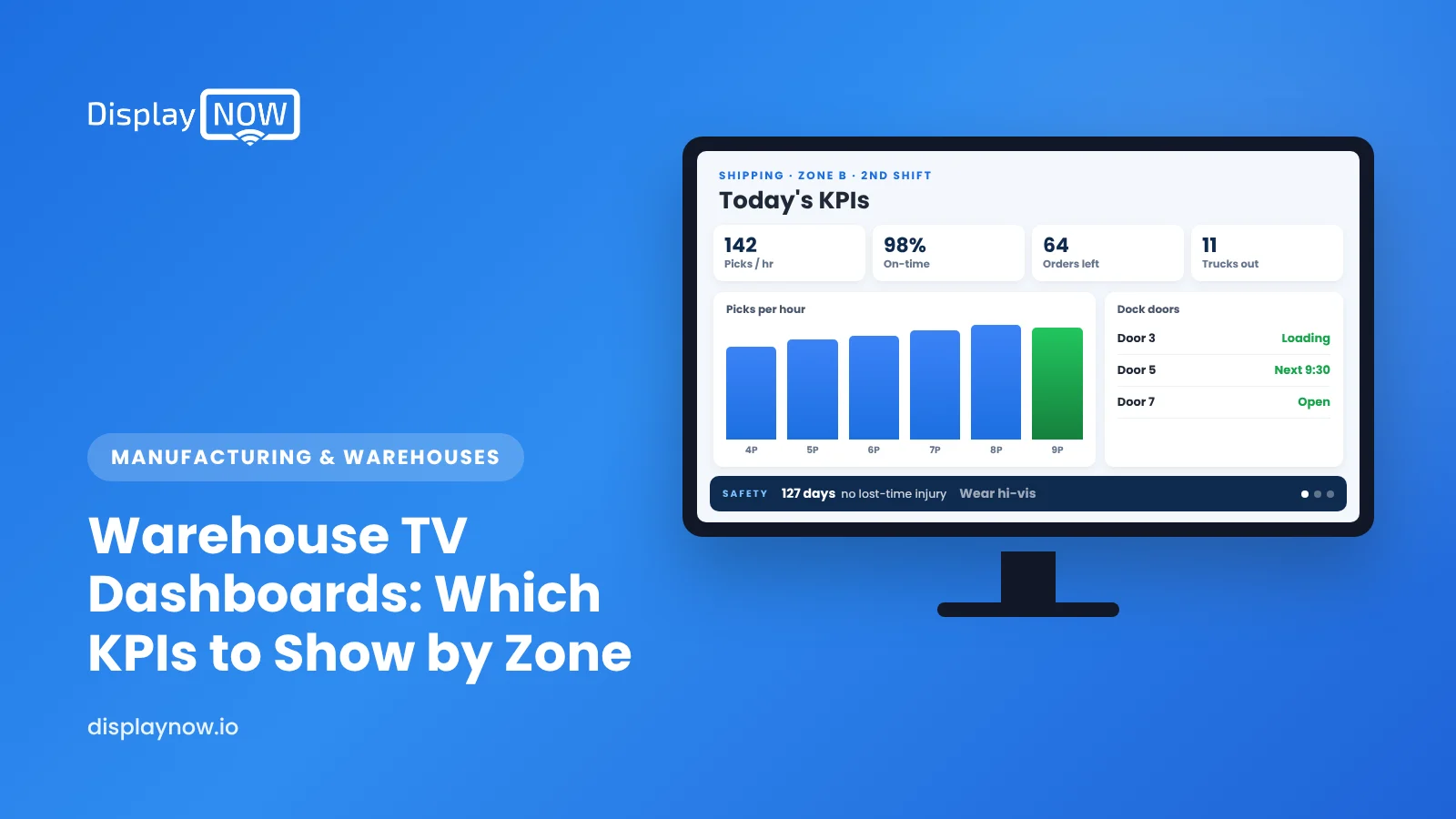
Warehouse TV screens should show the numbers a shift can still change: lines picked versus the hourly target, orders shipped versus today's goal, the next carrier cutoff and today's dock appointments, refreshed every 5 to 15 minutes on the floor. Add one rotating safety topic per week, such as forklift traffic rules, and keep monthly metrics off the floor screens.
A warehouse TV should answer one question for whoever glances at it: are we on pace right now? That means today's orders shipped versus target, the next dock appointments, and one safety message, refreshed often enough to act on. Anything that needs more than a few seconds to read belongs in the WMS, not on the wall.
Below is a practical layout for receiving, picking and shipping screens, the metrics worth showing, and the mistakes that turn a dashboard into wallpaper.
Which warehouse KPIs belong on a TV screen?
Pick metrics a shift can change before it ends. Monthly inventory accuracy or cost per order matter to managers, but nobody on the floor can move them by 2 p.m. Hourly and daily counts work better because people can see the effect of a push.
| Zone | Show this | Refresh | Why it helps |
|---|---|---|---|
| Picking | Lines picked vs. hourly target, orders left in the wave, cutoff countdown | Every 5–15 minutes | Team sees whether to pull help from another zone |
| Packing and shipping | Orders shipped today vs. goal, next carrier pickup time, late orders | Every 5–15 minutes | Keeps the carrier cutoff in front of everyone |
| Receiving | Today's dock appointments, trucks on site, putaway backlog | Hourly or on change | Avoids a wall of unscheduled trailers at 3 p.m. |
| Break room | Yesterday's results, safety streak, shift and overtime notices, recognition | Daily | Context without slowing anyone down |
| Entrances | PPE reminder, forklift traffic rules, visitor check-in | Weekly | Safety first, at the point of entry |
How do you get live numbers onto the screens?
Most warehouses already have the data in a WMS, an ERP export or a spreadsheet a supervisor updates. There are three common ways to get it to a TV:
- A Power BI dashboard. If your operations team already reports in Power BI, put the same report on screen. Display NOW shows Power BI dashboards directly, so the floor sees the numbers managers see, without anyone copying them.
- A spreadsheet-driven slide. Smaller sites can update a shared sheet each hour and show it. See our guide to showing an Excel or Google Sheets spreadsheet on a digital sign.
- Scheduled static slides. Dock appointment lists and shift notices that change once or twice a day can be uploaded as images or PDFs and scheduled to swap at shift change.
Whatever the source, design for distance. Numbers on a warehouse screen are often read from 30 feet away by someone driving a forklift. One big number per tile, green/amber/red status, and no tables with ten columns.
What safety messages actually work on warehouse screens?
Tie them to the hazards your site really has. OSHA's preliminary list of most frequently cited standards for fiscal year 2026 includes powered industrial trucks (forklifts) at number 7, alongside hazard communication and lockout/tagout. Those three map neatly onto warehouse life:
- Forklift traffic: pedestrian walkway rules, horn at intersections, no riders, daily pre-use inspection reminders.
- Hazard communication: where safety data sheets live, how to read a GHS label, what to do after a spill.
- Lockout/tagout: a step-by-step reminder near conveyors and balers.
Rotate one topic per week and keep it on every screen that week. A single repeated message gets remembered; a carousel of twelve doesn't. Our post on factory floor TV screens covers more on safety content.
How should you schedule content across shifts?
Different shifts need different screens. Day shift may run outbound waves while nights handle receiving and replenishment. With calendar-style scheduling you can set each shift's playlist once and let it change on its own:
- 6:00–14:00: picking and shipping KPIs, carrier cutoffs, day-shift notices.
- 14:00–22:00: receiving appointments, putaway backlog, evening notices.
- Overnight: replenishment, cycle count targets, safety focus.
- Any time: an urgent notice (weather closure, system outage) at higher priority, so it overrides the regular playlist until you remove it.
Which mistakes make warehouse dashboards fail?
- Stale numbers. A screen stuck on yesterday teaches everyone to ignore it. If data can't update at least hourly, show a "last updated" time.
- Too many metrics. Pick three per zone. If a supervisor can't explain why a number is up there, take it down.
- Blame boards. Ranking individual pickers publicly tends to backfire. Team totals and shift goals work better; recognize individuals with their consent.
- Screens nobody can reach. TVs mounted 20 feet up are hard to service. Pick hardware that can be managed remotely.
What hardware works in a warehouse?
A commercial or good consumer TV plus a small player is enough for most sites. Display NOW runs on the Display NOW Edge Player, which our team supports and manages remotely, so nobody needs a lift to fix a frozen screen. Every screen shows a remote preview, so a manager can check what the dock TV is showing from the office. The platform is SOC 2 compliant, which helps when IT asks how screens connect to your data. More on digital signage for manufacturing and warehouses.
Frequently asked questions
How often should a warehouse dashboard refresh?
For picking and shipping, every 5 to 15 minutes is enough to act on. Receiving and break-room screens can update hourly or daily. Faster refresh rarely changes behavior and adds load on your data source.
Should warehouse screens show individual productivity?
Be careful. Team and shift totals motivate without singling people out. If you show individual results, get agreement from the team first and focus on recognition rather than rankings.
Can one screen show KPIs and safety messages at the same time?
Yes. The simplest way is to alternate them in the playlist and give the KPI slide most of the airtime, for example 45 seconds of KPIs then 15 seconds of safety. If your signage app supports split layouts, keep the KPI area fixed so people always know where to look.
Do warehouse TVs need to be commercial-grade?
Not always. Commercial displays handle long hours and dust better and usually carry business warranties, but many sites start with consumer TVs in cleaner areas like break rooms and upgrade the floor screens later.
Disclaimer: This article is for general information only and is not a substitute for legal advice. Workplace safety requirements, including OSHA rules for powered industrial trucks, hazard communication and lockout/tagout, vary by state plan, industry and site, and they change over time. Confirm specific requirements with OSHA, your state safety agency or a qualified safety professional or attorney before acting.
- Pick three metrics per zone that a shift can move before it ends.
- Refresh picking and shipping screens every 5–15 minutes; break rooms daily.
- Forklifts (1910.178) rank #7 on OSHA's preliminary FY2026 most-cited list; tie safety slides to real hazards.
- Schedule playlists by shift and use priority for urgent notices.
Start free in minutes: one screen free forever, or try every feature free for 14 days. No credit card.
Start freeCompare plansGet Started


